# Kafka on Amazon MSK
ARNscope can show you an Amazon MSK cluster from the outside (its configuration, nodes and topics) and, through a tunnel, from the inside: what the brokers report, which consumer groups are behind, and the messages themselves. Everything is read-only. ARNscope never produces, deletes, changes configuration or commits offsets.
A narrated tour of under two minutes, with captions: the cluster from the MSK API, the tunnel, brokers, topics, consumer-group lag, reading messages and live tail. Sample data.
## Two kinds of tabs
Open **MSK** in ARNscope, choose the profile and region, and select a cluster. The tabs fall into two groups.
| Tab | Where the data comes from | Needs a tunnel |
| --- | --- | --- |
| **Overview** | The MSK API (`DescribeClusterV2`) | No |
| **Brokers**, **AWS API** view | The MSK API (`ListNodes`) | No |
| **Topics** | The MSK API (`ListTopics`, `DescribeTopic`, `DescribeTopicPartitions`) | No |
| **Connect** | The MSK API (`GetBootstrapBrokers`) | No |
| **Configuration** | The MSK API, provisioned clusters only | No |
| **Operations** | The MSK API, the 50 most recent cluster operations | No |
| **Brokers**, **Kafka** view | The brokers, over the Kafka protocol | Yes |
| **Topics**, Kafka sections in the topic pane | The brokers | Yes |
| **Messages** | The brokers | Yes |
| **Consumer groups** | The brokers | Yes |
The first group works with nothing but AWS permissions. MSK brokers sit in a private VPC, so the second group needs an ARNscope MSK tunnel: a saved tunnel on the **Tunnels** page that opens one SSM session per broker through an instance in your network. See [SSM tunnels](https://arnscope.com/docs/ssm-tunnels) for how to create one.
The Overview needs only AWS permissions: type, Kafka version, brokers, storage, authentication and encryption.
Once a tunnel exists for the cluster, the Kafka tabs show a connection bar with the tunnel name and its state. If the tunnel is not running, click **Start tunnel**. Starting opens SSM sessions, so ARNscope only does it when you click. If you have several tunnels for the cluster, **Kafka tunnel** picks one, and ARNscope remembers your choice per cluster.
Start tunnel opens one SSM session per broker; the bar turns Connected and notes that nothing here writes to Kafka.
## Strictly read-only
The Kafka client in ARNscope can send exactly 13 request types and no others:
| Purpose | Kafka requests |
| --- | --- |
| Connecting | `ApiVersions`, `SaslHandshake`, `SaslAuthenticate` |
| Cluster, topics, offsets | `Metadata`, `ListOffsets`, `DescribeCluster` |
| Messages | `Fetch` |
| Settings and sizes | `DescribeConfigs`, `DescribeLogDirs` |
| Consumer groups | `ListGroups`, `FindCoordinator`, `DescribeGroups`, `OffsetFetch` |
Every request goes through one function that checks the request type against this list, and a test in the repository fails if the list grows or if a produce, offset-commit, group-join, topic-creation or configuration-change request becomes sendable.
Two consequences worth knowing:
- ARNscope reads with plain fetches. It never joins a consumer group and never commits an offset, so reading a topic does not move any real consumer, and ARNscope does not show up as a group.
- Group lag is read with `OffsetFetch`, which only reads what a group has already committed.
## Brokers
On **Brokers**, the **Broker source** switch has two views:
- **AWS API**: what MSK reports about the nodes, such as subnet, IP address, endpoint, instance type, Kafka version and ENI, plus the ZooKeeper nodes or KRaft controllers. No tunnel needed. MSK Serverless manages its brokers, so there is nothing to list.
- **Kafka**: what the brokers themselves report. A strip shows the cluster ID, controller, topic count, partition count, under-replicated partitions and offline partitions. The table lists each broker with its host, port, rack and controller flag. Select a broker to see its settings below.
The settings table shows each setting's value, where it comes from (topic, broker, cluster or default) and flags for defaults, read-only values and sensitive values. Sensitive values are never shown. Filter by name, or tick **Overrides only** to hide defaults.
What the brokers report: the controller, partition counts and under-replicated partitions, then each broker's settings with sensitive values hidden.
## Topics
The **Topics** tab lists topics from the MSK API: partitions, replication and out-of-sync replicas. It needs a provisioned cluster running Kafka 3.6 or later, because AWS only offers the topic APIs there. For older clusters and MSK Serverless the tab says so. Tick **Internal topics** to include topics whose names start with `__`. ARNscope reads at most 5,000 topics this way.
Select a topic to open its pane. From the MSK API it shows status, partitions, replication factor, ARN, settings and the partition table (leader, replicas, in-sync replicas). With a connected tunnel it adds, from the brokers:
- **Messages (Kafka)**: total messages, **Size on disk** and whether the topic is internal, with a **Browse messages** button that opens the Messages tab on this topic. Size on disk reads `Not permitted` when your role cannot call `DescribeLogDirs`.
- **Partition offsets**: earliest and latest offset, message count, size and in-sync count for every partition. A partition that is missing replicas is marked as under-replicated, and one without a leader as **Offline**.
- **Kafka settings**: the topic's configuration, as above.
The message count is `latest - earliest`. On a compacted topic it counts offsets, not distinct keys.
A topic's pane: messages and size on disk, then the earliest and latest offset and message count of every partition.
## Consumer groups
**Consumer groups** lists every group with its state, member count, topics and total lag. Lag is read for the first 200 groups in the list (sorted by name); the toolbar says so. Select a group to see its coordinator broker, assignor, members with their partition assignments, and one row per partition with the committed offset, the latest offset and the lag. A partition the group has not committed to shows **None**.
Every group with its state and total lag; open one for its members and the lag on each partition.
Groups are read the first time you open the tab, never in the background. Auto-refresh is off unless you choose an interval in the refresh control, and the refresh button reloads the list and the open group.
## Messages
The **Messages** tab reads from a topic. Choose a topic and press **Read**, or start a live tail. Every read is a fresh, bounded read from the brokers; nothing is cached.
### The controls
| Control | What it does |
| --- | --- |
| **Topic** | The topic to read. Loaded the first time you open the tab. |
| **Internal** | Includes internal topics in the list. |
| **Partitions** | Which partitions to read. Empty means all. Write numbers and ranges separated by commas, such as `0, 3-5`. ARNscope rejects a partition the topic does not have. |
| **Key** | Show only messages whose key is exactly this text (compared as UTF-8 bytes). When **Partitions** is empty, ARNscope also works out which partition holds the key and reads only that one; see [Finding a key's partition](#finding-a-keys-partition). |
| **Start** | **Latest** reads the newest messages, newest first. **Earliest** reads from the start of each partition. **Offset** reads from that offset in every selected partition. **Timestamp** reads from the first message at or after a local date and time. Offsets outside a partition's range are moved into it. If nothing is at or after the timestamp, the read starts at the end. |
| **Limit** | How many messages to return, 1 to 5,000. The default is the one in **Reading limits** (100). |
| **Isolation** | **Uncommitted** includes messages from open or aborted transactions, as a Kafka consumer does by default. **Committed** returns only committed ones. Transaction control records are always hidden. |
| **Filter**, **In**, **Match case** | Keep messages that contain the text. **In** limits the match to **Key**, **Value**, **Headers** or **Anywhere**. **Match case** makes it case-sensitive. The filter looks at the whole message, not just the preview, so a match past the preview limit still counts. |
| **Reading limits** | Opens the popover described under [Memory limits](#memory-limits). |
| **Live tail** | Follows new messages; see [Live tail](#live-tail). |
With **Latest**, the grid is newest first and the page button is **Load older**. With the other starts, messages come oldest first across partitions and the button is **Load newer**. Messages from different partitions are merged by timestamp.
### Paging
**Load older** and **Load newer** continue from where the last read stopped, per partition, and add to the grid. The status bar shows how many messages are loaded and how many records were scanned. It also tells you why a read stopped:
- **Reached the start** or **Reached the end**: there is nothing more in that direction.
- **Scan budget reached**: the read hit a per-read cap (see the table below) before it found enough matching messages. Narrow the partitions or move the start point, or press **Load older** or **Load newer** to keep going.
- **Memory cap reached**: the grid holds as many messages as it will keep, so paging stops.
If a filter matches nothing before the budget runs out, the grid says "The scan budget ran out before a match".
### Inspecting a message
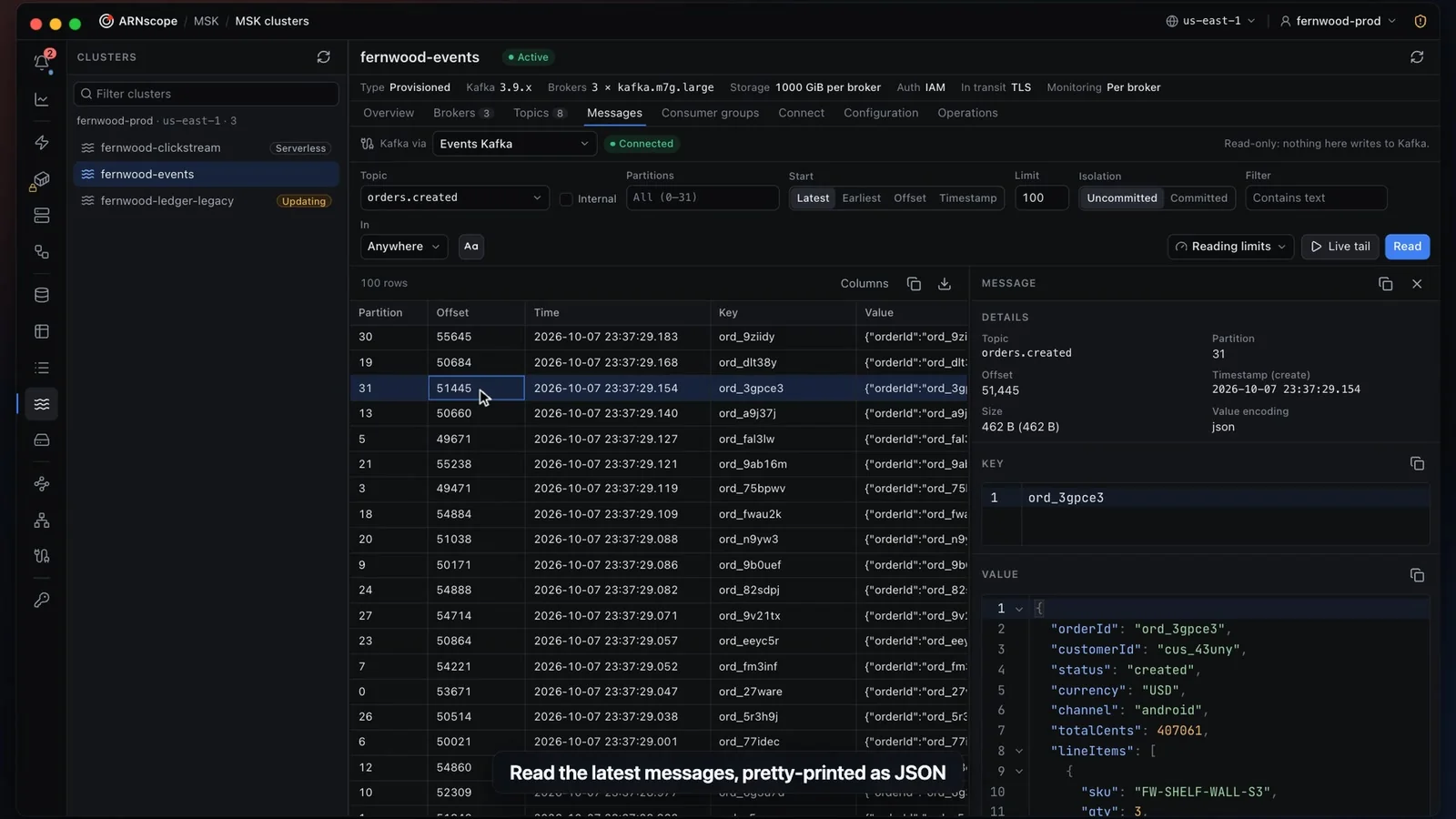
Select a row to open the message pane: topic, partition, offset, timestamp (and whether it is the create time or the broker's log-append time), size and value encoding, then the key, the value in a read-only editor and the headers. Use the copy buttons for the key, the value or the whole message as JSON.
Read the newest messages, newest first, and open one: a JSON value is re-indented in the pane.
Keys, values and headers are shown as one of four encodings:
| Encoding | When |
| --- | --- |
| `null` | There is no value (a tombstone, for the value). |
| `json` | Complete text that parses as a JSON object or array. Shown re-indented in the pane, with numbers left exactly as sent. |
| `utf8` | Readable text, including a bare number or invalid JSON. |
| `base64` | Anything else, such as binary data. The grid shows its size, and the pane shows the base64 text. |
If the value was cut at the preview size, the pane says "Preview only" and offers **Load full message**, which reads that one message again with a limit of 10 MiB.
An oversized message arrives as a preview; Load full message reads that one message again, up to 10 MiB.
### Export
The download button above the grid, **Export loaded messages as JSON Lines**, saves what is loaded as `.jsonl`: one message per line, in grid order, with previews as they were loaded.
### Finding a key's partition
Kafka does not store which partitioner a producer used, so ARNscope works it out. When you type a **Key** and leave **Partitions** empty, it reads the newest five keyed messages of every online partition (one fetch, uncommitted) and tests three common partitioners against them:
- `murmur2`, used by the Apache Kafka Java client
- `crc32`
- `fnv1a`
It accepts a result only when:
1. The sample holds at least 3 different keys.
2. Exactly one partitioner places every sampled message in the partition where it was actually found.
If that holds, the read goes to the one partition the key maps to, and the status bar shows ` → partition 3 · murmur2, matched 40 of 40 sampled`. A topic with a single partition needs no detection and the bar says `only partition`.
Otherwise ARNscope reads every partition and a notice explains why:
| Notice | Meaning |
| --- | --- |
| The topic has no keyed messages to learn from | The sample was empty. |
| Recent messages use too few different keys | Fewer than 3 distinct keys, so the result would be a guess. |
| More than one partitioning scheme fits | Two or more partitioners explain the sample equally well. |
| Couldn't tell how this topic assigns keys to partitions | None of the three fits, for example a custom partitioner. |
A conclusive result is remembered for 10 minutes per tunnel, topic and partition count. A result that failed for lack of data is not remembered, so it can succeed once the topic has more keyed messages. The **Key** filter still applies on top: only messages with exactly that key are returned.
A key with Partitions empty: ARNscope works out the partition and reads only that one.
### Live tail
**Live tail** shows messages written after you start it. It uses the same topic, partitions, key, filter and isolation settings, which are locked while the tail runs. **Start** and **Limit** do not apply.
Live tail with its rate and buffer count; Pause stops fetching until you resume.
- The backend collects messages and hands them to the grid in batches at most every 250 ms, at most 500 messages per batch. If more than 500 arrive in one batch, the newest 500 are kept and the rest count as **Dropped**.
- The grid is a ring buffer of the newest messages. Its size is **Live tail buffer** in **Reading limits** (1,000 by default). Older messages fall out and count as **Dropped**.
- If the tail stays behind for more than 3 seconds, it jumps to the newest messages and the status bar shows **Skipped N to stay live**.
- **Pause** really pauses: the backend stops fetching, so nothing piles up behind the frozen grid. **Resume** continues from where it stopped. If a pause is long, the tail may then skip ahead as above.
- The tail stops when you click **Stop**, when you leave the Messages tab or the ARNscope page, when you change cluster, when the tunnel stops, or after five failed fetches in a row. It never runs in the background.
- At most 8 tails run at once in the app.
The status bar shows the message rate over the last five seconds.
### Memory limits
ARNscope bounds every read so that a busy topic cannot fill your memory.
| Limit | Value |
| --- | --- |
| Messages per read (**Limit**) | 1 to 5,000, default 100 |
| Fetched from the brokers per read | 16 MiB |
| Records scanned per read | 50,000 |
| Decoded records per read (safety net for compressed topics) | 64 MiB |
| One fetch round | 4 MiB, split across partitions |
| Preview size per key, value and header (**Preview size (KiB)**) | 1 to 1,024 KiB, default 64 KiB |
| One message loaded in full | 10 MiB |
| Messages kept in the grid | 10,000, or about 64 MiB of text, whichever comes first |
| Live tail buffer (**Live tail buffer**) | 100 to 10,000, default 1,000 |
| Tail batch | every 250 ms, up to 500 messages |
| Concurrent tails | 8 |
The first read stops at whichever of the 16 MiB, 50,000-record or 64 MiB budgets runs out first. The **Reading limits** popover also sets **Default message limit**, **Preview size (KiB)**, **Live tail buffer** and the default **Isolation level**. It saves them on this Mac only, and **Restore defaults** resets them. Out-of-range values are clamped.
### Reading a high-volume topic
The tunnel carries every byte you read, and its bandwidth is usually the bottleneck rather than the brokers.
- Pick a partition, or type a key, instead of reading the whole topic. A read of one partition is far cheaper than a read of all of them.
- Use **Timestamp** or **Offset** to start near what you want, instead of paging from **Earliest**.
- Prefer a coarser topic or a smaller preview size over scanning a topic that carries large messages.
- A filter does not reduce what is fetched. It only reduces what is kept, so a rare match in a very busy topic can exhaust the scan budget. Combine it with a partition or a start point.
- Keep the **Limit** small. Page with **Load older** or **Load newer** when you need more.
## Permissions
The MSK API tabs need these actions:
| Feature | IAM actions |
| --- | --- |
| Cluster list | `kafka:ListClustersV2`, `kafka:DescribeClusterV2` |
| Cluster, brokers, bootstrap strings | `kafka:DescribeClusterV2`, `kafka:GetBootstrapBrokers`, `kafka:ListNodes` |
| Topic list | `kafka:ListTopics`, `kafka-cluster:Connect`, `kafka-cluster:DescribeTopic` |
| Topic details | `kafka:DescribeTopic`, `kafka:DescribeTopicPartitions`, `kafka-cluster:Connect`, `kafka-cluster:DescribeTopic`, `kafka-cluster:DescribeTopicDynamicConfiguration` |
| Configuration | `kafka:ListConfigurationRevisions`, `kafka:DescribeConfigurationRevision` |
| Operations | `kafka:ListClusterOperationsV2` |
The Kafka tabs, through a tunnel, use the data-plane actions of MSK IAM access control:
| Feature | IAM actions |
| --- | --- |
| Brokers (Kafka view) | `kafka-cluster:Connect`, `kafka-cluster:DescribeCluster`, `kafka-cluster:DescribeTopic`, `kafka-cluster:DescribeClusterDynamicConfiguration` for broker settings |
| Topic offsets and settings | `kafka-cluster:Connect`, `kafka-cluster:DescribeCluster`, `kafka-cluster:DescribeTopic`, `kafka-cluster:DescribeTopicDynamicConfiguration` |
| Consumer groups and lag | `kafka-cluster:Connect`, `kafka-cluster:DescribeGroup`, `kafka-cluster:DescribeTopic` |
| Messages, live tail, key routing | `kafka-cluster:Connect`, `kafka-cluster:DescribeTopic`, `kafka-cluster:ReadData` |
The tunnel itself needs SSM permissions; see [SSM tunnels](https://arnscope.com/docs/ssm-tunnels). Use [the permission check](https://arnscope.com/docs/iam-permission-check) to see which of these your profile is missing. Grant `kafka-cluster:Connect` on the cluster ARN and the others on the topic or group ARNs, as described in AWS's [topic operations permissions](https://docs.aws.amazon.com/msk/latest/developerguide/msk-topic-operations-information.html). A missing permission shows up as a plain message naming the action, for example "This profile is not allowed to read the topic orders (kafka-cluster:DescribeTopic / ReadData)".
## Why IAM authentication
ARNscope connects to Kafka with IAM, and IAM is the option AWS recommends for MSK. In the [MSK FAQ](https://aws.amazon.com/msk/faqs/), AWS lists IAM access control as the recommended option for provisioned clusters and says it is "the easiest to use and, because it defaults to least privilege access, the most secure option". For MSK Serverless it is the only option offered.
What that means in practice:
- **No password to store or rotate.** ARNscope signs a request with the credentials your AWS profile already has, the same way it signs every other AWS call. Nothing about Kafka is saved on your Mac.
- **Short-lived tokens.** Each connection authenticates with a signed token that expires after 900 seconds (15 minutes). ARNscope reconnects before the broker's session runs out.
- **Access is granted and revoked in IAM.** Remove the policy, or the role's SSO assignment, and the next connection fails. You can scope access per topic and per group with the policies above.
- **One place to audit.** AWS says MSK [logs access events](https://docs.aws.amazon.com/msk/latest/developerguide/iam-access-control.html) for IAM access control. Be aware that CloudTrail records only some Kafka actions (describing and changing configuration, creating, altering and deleting topics), listed in [Log API calls with CloudTrail](https://docs.aws.amazon.com/msk/latest/developerguide/logging-API-using-cloudtrail.html). Connections and reads of messages are not in that list, so use broker logs for those.
Trade-offs, from the AWS documentation on [IAM access control](https://docs.aws.amazon.com/msk/latest/developerguide/iam-access-control.html):
- Apache Kafka ACLs have no effect on IAM identities. All access control for them is in IAM policies.
- IAM access control does not apply to ZooKeeper nodes.
- It runs on its own broker port, 9098 (9198 for public access), so a cluster must have IAM enabled and its security group must allow that port. See [port information](https://docs.aws.amazon.com/msk/latest/developerguide/port-info.html).
- Non-Java clients need Kafka 2.7.1 or later on the cluster.
## Limitations
- **IAM authentication on port 9098 only.** ARNscope does not support SASL/SCRAM, mutual TLS or unauthenticated (plaintext or TLS-only) listeners. If the broker does not offer the `AWS_MSK_IAM` mechanism, ARNscope says so and asks whether the cluster is IAM-enabled on port 9098.
- **Tunnel required for Kafka tabs.** The Kafka tabs only work through an ARNscope MSK tunnel to the brokers. ARNscope does not connect to a public endpoint, to a VPN or to a peered network by itself.
- **Read-only.** There is no producing, no creating or deleting of topics, no configuration changes, no offset resets and no group management.
- **No schema decoding.** ARNscope detects `null`, JSON, UTF-8 text and binary only. It does not talk to a schema registry and does not decode Avro, Protobuf or other binary formats. Those messages show as base64.
- **Topic APIs need Kafka 3.6 or later.** The AWS-API **Topics** tab is for provisioned clusters running Kafka 3.6 or later. On older clusters, the Kafka-side views still work through a tunnel, but the **Topics** tab does not list them.
- **Old message formats.** Topics written in the format used before Kafka 0.11 cannot be read. Gzip, Snappy, LZ4 and Zstandard compression are supported.
- **Partition detection is a guess.** It covers three common partitioners and can fail or be ambiguous. See above.
- **Lag for 200 groups.** Group lag is calculated for the first 200 groups in the list.
- **MSK Serverless.** The Kafka tabs are built for provisioned clusters, where ARNscope can list the brokers for a tunnel. Serverless clusters were not part of what this page covers, and the Brokers tab and the topic list say they are not available for them.
- **Local settings.** Reading limits and the chosen tunnel are kept on this Mac only.
Need another mode? Write to [hello@arnscope.com](mailto:hello@arnscope.com) and tell us which authentication you use.
Source: https://arnscope.com/docs/kafka