SSM tunnels
Last updated 13 November 2026
Databases and Kafka brokers usually sit in private subnets. An SSM tunnel reaches them through a bastion, an EC2 instance in the same VPC that runs the SSM Agent, using AWS Systems Manager Session Manager instead of an open SSH port.
ARNscope opens the tunnel itself. It talks to the Session Manager API directly, so you do not need the AWS CLI or the session-manager-plugin for tunnels. By default only ARNscope can use a tunnel: it connects to the destination inside the app, and nothing listens on your Mac. You can choose to open a local port for other apps (see Open a local port for other apps).
When to use it
- You want the RDS and Aurora PostgreSQL console, MySQL, StarRocks and ClickHouse connections, the Kafka views or the Valkey views to reach a private endpoint.
- A database runs on an EC2 instance itself (StarRocks, a self-hosted MySQL) and you want to reach its port on that instance.
- You want
psql, a Kafka client or another tool on your Mac to reach a private endpoint without keeping a terminal session open.
What a tunnel is
A saved tunnel names a bastion instance and one or more destinations (host:port). Starting it opens one SSM session per destination, using the AWS-owned AWS-StartPortForwardingSessionToRemoteHost document unless you pick another. Many connections to the same destination share that one session.
| Type | Destinations | Notes |
|---|---|---|
| RDS database | Exactly one: the writer or reader endpoint | Chosen from the databases in the selected profile and region. |
| MSK cluster | One per broker, on port 9098 | Provisioned clusters only. MSK Serverless clusters are not offered. |
| Valkey cache | Exactly one: the cache’s primary endpoint | See Valkey. |
| EC2 instance | A port on an instance you pick | On the instance forwards localhost:<port> on the instance itself; Through a bastion forwards to its private IP. Saved as a custom tunnel. |
| Custom host | One host name or IPv4 address and a port | For anything else reachable from the bastion. |
A tunnel can have at most 32 destinations, and its name is up to 64 characters.
The Tunnels page lists each saved tunnel with its type, profile and region (and follows Name=… when it follows an instance’s Name tag). In the left rail it is the icon titled ARNscope tunnels.
Tunnels are saved in the app data folder on this Mac, in a file only you can read. They are never sent anywhere. Running tunnels live inside ARNscope: quitting the app ends every session.
Create a tunnel
- Choose the profile and region in the title bar, then open Tunnels and click New tunnel.
- Pick the Destination type: RDS database, MSK cluster, Valkey cache, EC2 instance or Custom host, and choose the database, cluster, cache or instance (or enter the host and port).
- Under Bastion, click Find bastions (see below), pick one, or enter the instance ID (
i-…) yourself. An EC2 instance reached On the instance needs no bastion. - Give the tunnel a name, and choose whether to Keep open.
- Optionally click Test connection, then Save.
The profile and region are the ones selected in the title bar when you create the tunnel. A saved tunnel keeps them. A tunnel can only be edited while it is stopped.
Finding a bastion
Find bastions (and Check bastions on a saved tunnel) only reads from AWS. It never creates or probes anything. It lists instances that are online in Systems Manager and shows a verdict for each:
| Verdict | Meaning |
|---|---|
| Ready | The bastion is in the same VPC as the destination and the security groups on both ends allow the port. |
| Blocked | A security group rule is missing. The reason names the group and whether it is the outbound or inbound rule. |
| No document | No session document allows port forwarding to this host and port. |
| Unknown | ARNscope could not read the destination’s network, or the bastion is in another VPC. |
The check reads security groups, subnets and network interfaces. It does not expand managed prefix lists (it assumes they may match), and for a custom host it can only find the network when you enter an IPv4 address. Name hints (“Named like a bastion”, “No inbound rules”, “Small instance”) only sort the list; they never change a verdict. At most 200 online instances are shown.
For a custom session document, ARNscope reads your account’s own session documents (the first 50) and keeps the ones that take a host parameter and accept the destination.
A bastion needs
- An EC2 instance in the same VPC as the destination, running the SSM Agent and online in Systems Manager. See Start a session in the AWS docs.
- Security groups that let the bastion reach the destination port.
A service on an EC2 instance
Pick EC2 instance to reach a port on an instance: a StarRocks node, a self-hosted database. The list shows the instances in the profile and region, running ones first; a stopped one must be running when you start the tunnel.
| Reach it | What is saved | Needs |
|---|---|---|
| On the instance | A forward to localhost:<port>, with the instance as the SSM target. ARNscope uses the AWS-StartPortForwardingSession document for it. |
The SSM agent online on the instance, and an IAM policy that allows that document. |
| Through a bastion | A forward to the instance’s private IP, through a bastion you choose. | A bastion that reaches it. The address is saved: if the instance is replaced, edit the tunnel. |
ARNscope checks the instance’s SSM agent and suggests up to five TCP ports that its security groups open (“May be incomplete.”). If another saved tunnel already runs on the instance, the picker shows Also used by … and Save asks first.
Follow a replaced instance
When the instance (or bastion) has a Name tag, the dialog offers Keep following this instance if it is replaced (or Keep following the bastion if it is replaced). Each start then uses the one running instance with that exact Name, in the tunnel’s profile and region, and the tunnel shows “Instance replaced. Now using i-… (was i-…).” when it moved. A start fails with a clear reason when no running instance has the Name, or when more than one does. Turn it off to always use the saved instance ID.
Repair a tunnel that can’t start
A tunnel whose start failed shows Can’t start and its reason. The fix is named after the reason: Choose another instance when the instance is gone, stopped or its SSM agent is offline, and Check bastion and host otherwise. Both open the tunnel’s dialog with the reason at the top and the instance or bastion field ready. When you select a stopped tunnel that uses a fixed instance ID, ARNscope reads that instance and warns, before you click Start, if it was terminated or no longer exists.
Test a tunnel
Test connection opens an SSM session, makes one connection through it and closes both. It reports how long the session took to start and how long the first answer took.
- For PostgreSQL on port 5432 it sends a PostgreSQL SSL request, and for MSK and Valkey it completes a TLS handshake. An answer proves the destination is listening.
- For any other port it can only tell that the bastion accepted the connection. The result then says “Not confirmed”, because the bastion cannot tell a listening port from a closed one when the protocol waits for the client to speak first.
A test opens an SSM session, so it counts against the session limit while it runs and is logged by AWS like any session.
Start and stop
Click Start to open the sessions. Starting a session is a write in AWS: it appears in CloudTrail under your identity. ARNscope only starts a tunnel when you ask: Start, Reconnect, Test connection, Start tunnel and connect in a database form, Start in the menu bar menu, or arnscope tunnel start on the command line. It never starts one when the app launches; afterwards it only opens sessions again to reconnect a tunnel that is running.
A tunnel shows one state:
| State | Meaning |
|---|---|
| Connecting | Sessions are being opened. |
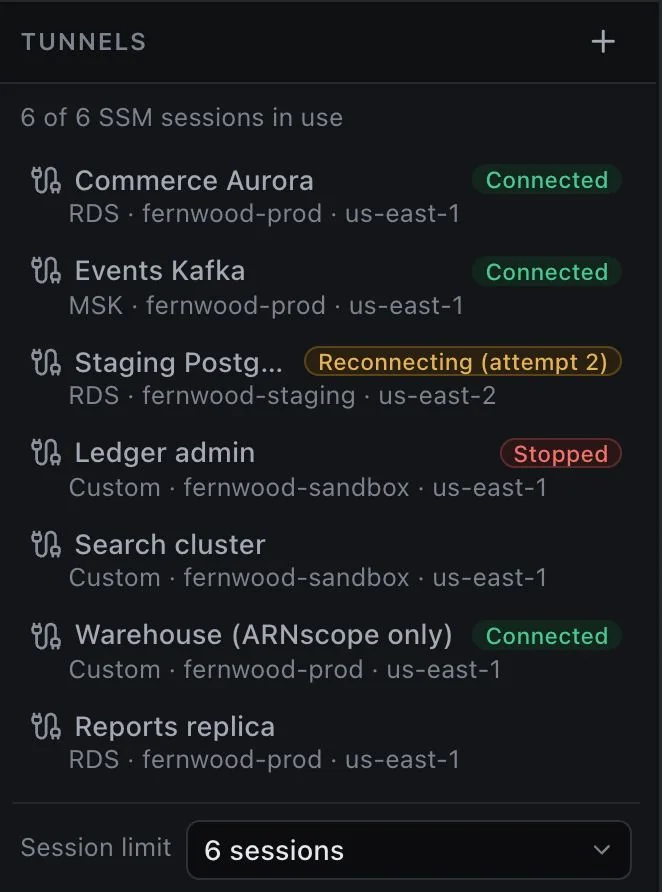
| Connected | All sessions are up. |
| Reconnecting (attempt N) | A session dropped and ARNscope is trying to resume it. |
| Stale | Nothing has been heard from the SSM Agent for a minute. |
| Sign in | Your credentials expired. Sign in to the profile, then choose Start again. |
| Can’t start | The start failed before any session opened. The reason is shown, with a fix (see Repair a tunnel that can’t start). |
| Stopped | Not running, or it stopped after running. A reason is shown when it dropped. |
With several sessions, the tunnel shows the one that needs attention most. The destinations table lists each session with its state, open connections and session ID.
Stop ends the sessions on the bastion and in AWS. Reconnect stops and starts again. Delete removes the saved settings from this Mac and stops the tunnel first.
If a tunnel’s MSK cluster scales or is patched, the broker list is read again from AWS every time the tunnel starts, so you do not need to edit it.
Session limit
Every destination is one SSM session, so an MSK tunnel with three brokers uses three. ARNscope limits the sessions it keeps open across all tunnels, including a running Test connection. The default is 6. Change it with Session limit on the Tunnels page; the list there offers 1 to 12, and ARNscope accepts 1 to 20. If a tunnel needs more sessions than are free, starting it fails and says how many it needs and how many are free. The Tunnels page shows “N of M SSM sessions in use”.
Idle shutdown and Keep open
A tunnel whose connections have all been closed for 10 minutes is stopped automatically. ARNscope checks every 30 seconds, and the stop is written to the app log. Turn on Keep open to disable this for a tunnel. The tunnel’s Idle shutdown field shows which applies.
Reconnecting and heartbeat
ARNscope pings each session every 20 seconds. If nothing at all arrives for 60 seconds the tunnel is marked Stale. When a connection drops, ARNscope tries to resume the same session first and then to start a new one, waiting 1, 2, 5, 15 and then 60 seconds between attempts. If 3 sessions in a row close within 20 seconds of starting, ARNscope stops retrying and the tunnel shows why.
Connections made while a tunnel is reconnecting fail. Connections that were open when a brand-new session had to be started are closed. New connections work as soon as the tunnel is back. Programs using a local port should reconnect on their own, as they would after any network interruption.
MSK tunnels
An MSK tunnel opens one session per broker, because Kafka clients connect to each broker by its own host name. ARNscope reads the broker endpoints with kafka:ListNodes each time the tunnel starts and forwards each to port 9098, the IAM listener. The Kafka views use the tunnel from inside ARNscope. See Kafka.
Valkey tunnels
A Valkey tunnel opens one session to an ElastiCache cache’s primary endpoint (port 6379 by default). The Valkey views use it from inside ARNscope, with TLS and an IAM token. See Valkey.
Custom session documents
The tunnel’s Session document defaults to AWS-StartPortForwardingSessionToRemoteHost. If your account has its own Session-type document, for example one that fixes the port or limits the allowed hosts, choose it in the tunnel. ARNscope reads it once (ssm:GetDocument) and sends only the parameters it declares:
hostandportNumberare filled from the destination. If the document setsallowedPatternon them and the destination does not match, ARNscope refuses before calling AWS and says so.- If the document fixes the port with a literal
portNumberproperty and the tunnel’s port differs, ARNscope refuses. - If the document fixes the destination with a literal
hostproperty (nohostparameter), the tunnel’s host must be that host; otherwise ARNscope refuses with “This session document always forwards to …”. Find bastions offers such a document when its host and port match the target. localPortNumbergets a real free-looking port, never0, chosen to match the document’s pattern.- Any other parameter must have a default. A document that needs a parameter without one is refused with its name.
If ssm:GetDocument is denied, ARNscope sends the standard three parameters (host, portNumber, localPortNumber).
Choosing a tunnel for a database
The RDS connect form and the saved-connection dialog (PostgreSQL, MySQL, StarRocks and ClickHouse) share one picker. Connect through offers ARNscope tunnel, My own tunnel and Direct; ARNscope tunnel shows the Tunnel list, the tunnel’s state and New tunnel.
What the list shows
A tunnel carries a connection only when it forwards exactly the connection’s host and port. The list groups tunnels so the right one is on top:
| Group | What is in it |
|---|---|
| Reaches this endpoint | Tunnels that forward this host and port. Running ones first, then stopped, then ones that can’t start. |
| Tunnels on <port> | For a localhost host with no instance known yet: the tunnels that forward that port on their own instance, each with the instance it is on. |
| Reaches the reader endpoint (or writer) | Tunnels to the database’s other endpoint. |
| Other tunnels, Other profiles | Everything else. A tunnel in another profile or region shows that first. |
| Non-database tunnels | MSK and Valkey tunnels, shown disabled (“Carries Kafka, not SQL”, “Carries Valkey, not SQL”). |
A tunnel on an instance that another tunnel found gone is disabled and reads On missing instance.
Without a choice of yours, the form takes a database tunnel in the connection’s profile and region that reaches the endpoint, a running one first. It never does that for a localhost host (see below).
The line under the picker
One line says what matters most, often with a one-click fix:
| Line | Fix offered |
|---|---|
| Choose a tunnel; one reaches this endpoint. | Pick it. |
| No tunnel reaches this endpoint yet. | New tunnel, or Use the reader endpoint when a tunnel reaches the other one. |
| Goes to …, not this endpoint. | Use “…” (another tunnel that reaches it), Use the … endpoint, Use localhost (same port, other spelling), or Add host:port to it for a stopped custom tunnel on a bastion this database already uses (Stop “…” to add this endpoint. while it runs). |
| The tunnel’s reason (it stopped or can’t start) | Use “…”, or Choose another instance / Check bastion and host to repair it in place. |
| In <profile>, not <profile>. | The chosen tunnel is in another profile or region. |
| … is a port on a tunnel’s own instance. Choose the tunnel for that instance above. | Pick the instance’s tunnel. |
| Tunnels forward localhost:…, not 127.0.0.1:…. | Use localhost: ARNscope dials a forward by its exact spelling. |
New tunnel from a form
New tunnel opens the tunnel dialog filled in for this database: an RDS tunnel for an RDS database, a custom host for a saved connection, in the form’s profile and region. If a working tunnel in that profile and region already reaches the same database, its bastion and session document are copied (“Copied from …”); otherwise Find bastions runs by itself, and a single Ready bastion is taken. If a saved tunnel already forwards to the endpoint, the dialog says “… already reaches this endpoint.” with Use it. Saving selects the new tunnel; in a saved connection its destination also fills an empty Host and Port.
Remembered routes (RDS page)
On this Mac, the RDS page remembers how you last reached each database: the tunnel, My own tunnel or Direct. Each row under Previous connections keeps its own route too, shown as Tunnel “…”, localhost:5433 or Direct. If that tunnel was deleted, the form says so: The tunnel used here last was removed. Now uses “…”, which reaches this endpoint. (or Choose another, or create one.), and the row offers Use another tunnel.
Same port, other instance: another database
A localhost host is a port on one particular instance. localhost:9030 through a tunnel to the staging StarRocks node and localhost:9030 through a tunnel to the prod node are two different databases, even though host and port are the same. ARNscope treats it that way everywhere:
- A tunnel only “reaches” a
localhostconnection when it is on the connection’s own instance (the same instance ID, or the same followed Name tag, in the same profile and region). - The form never picks a tunnel for a
localhosthost by itself. You choose it (“Choose the tunnel for localhost:…”). - The connection dialog says, next to Save, which instance a
localhostconnection reaches: Reaches localhost:9030 on staging · fernwood-starrocks (i-0123…). - Picking a tunnel on another instance asks first: Use “…” on …? It is on a different instance from “…” (…), so another database. with Keep “…” (or Don’t switch) and Use “…”. Until you save, the line reads On a different instance from “…”; Save will ask to confirm.
- Saving asks again, in Confirm instance change, when the connection would land on another instance, its saved tunnel was removed, it used My own tunnel or Direct before, or its host or port changed: Keep editing or Save with “…”. Every save path does this check, including Use “…” on the connection page (which offers Undo afterwards).
- Moving a tunnel that forwards a
localhostport to another instance, in its own dialog, asks too and names the connections that use it: they will reach localhost:… on that instance instead, possibly another database. - A one-click replacement is never a tunnel on another instance.
These checks read only the tunnels saved on this Mac; nothing is sent to AWS.
Open a local port for other apps
By default, only ARNscope can use a running tunnel. To use psql, a Kafka client or another program, turn on Open a local port for other apps in the tunnel’s settings.
- It is off by default and set per tunnel.
- ARNscope only binds IPv4 loopback addresses (127.0.0.0/8), so nothing on your network can connect.
- While the port is open, any program on this Mac can connect to it. The database’s own login (or, for MSK, your profile’s IAM permissions) still applies.
- If a port cannot be opened, for example because it is already in use, the tunnel keeps running for ARNscope and the session shows the reason.
RDS and custom tunnels
Choose a Local port from 1024 up. ARNscope suggests 10000 plus the destination port (15432 for PostgreSQL). Connect to 127.0.0.1 on that port. A tunnel with several destinations uses consecutive ports, one each. The Local address column shows where each one listens, with a copy button.
For PostgreSQL through a local port, remember that the TLS certificate names the RDS endpoint, not 127.0.0.1. Use a client mode that does not check the host name, or add a hosts entry for the endpoint yourself.
Valkey tunnels
A Valkey tunnel listens on one local port, like an RDS tunnel. Local clients need their own IAM token (no CLI generates one; ARNscope does it in-app) and must pass --sni with the cache host name, because the certificate names that host, not 127.0.0.1:
valkey-cli -h 127.0.0.1 -p 16379 --tls --sni master.example.use1.cache.amazonaws.com --user <iam-user-id> --pass "$VALKEY_IAM_TOKEN"
MSK tunnels
Kafka clients dial each broker by its host name, and TLS checks that name, so each broker needs its own loopback address and a hosts entry. ARNscope gives broker b-N the address 127.0.0.(N+1) on port 9098, so b-1 is 127.0.0.2:9098. Brokers that do not follow the b-N naming take the next free address starting at 127.0.0.2. At most 253 brokers are exposed (127.0.0.254 is the last address).
Setting this up needs administrator rights on your Mac, so ARNscope never runs these commands. The Local access setup panel on the tunnel shows, for each broker, whether its Loopback address and Hosts entry are ready, and the commands for what is missing. For example:
sudo ifconfig lo0 alias 127.0.0.3 up
printf '%s\n' '127.0.0.3 b-2.fernwood-events.example.kafka.us-east-1.amazonaws.com  # ARNscope tunnel' | sudo tee -a /etc/hosts
Run them in a terminal (they are Fish-compatible), then click Check again. The check only reads: it tries to bind each address for an instant and resolves each broker name. Then start the tunnel and connect your Kafka client to the broker host names on port 9098.
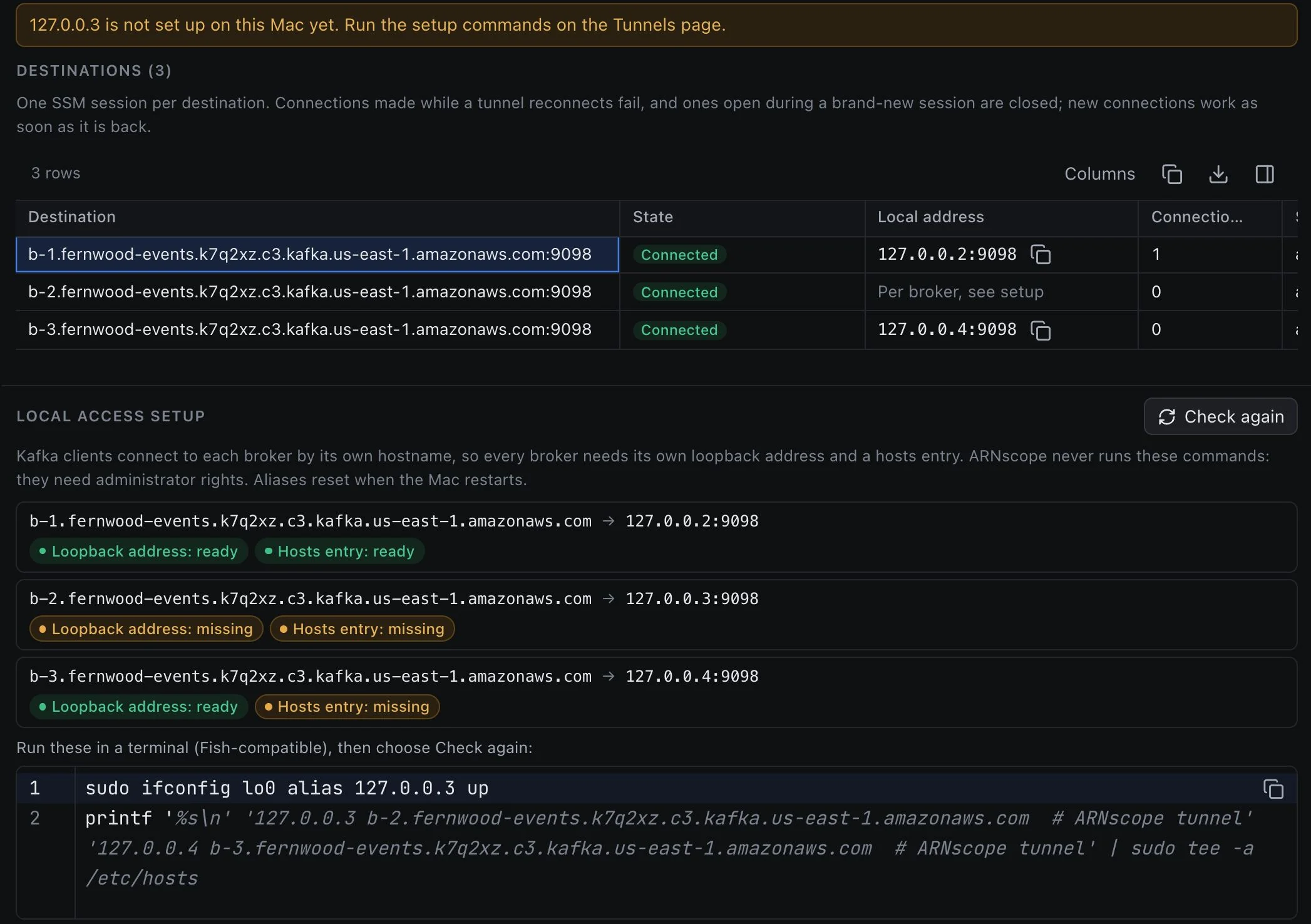
- Loopback aliases are lost when your Mac restarts. Run the alias commands again, or use Check again to see what is missing.
- The hosts lines end with the marker
# ARNscope tunnel. ARNscope adds nothing else to/etc/hosts, so your own entries and entries from other scripts stay as they are. - Undo the setup on the panel lists the commands that remove the aliases and delete only the lines ending in
# ARNscope tunnel:
sudo ifconfig lo0 -alias 127.0.0.3
sudo sed -i '' '/# ARNscope tunnel$/d' /etc/hosts
The menu bar menu
On macOS, ARNscope’s menu bar icon opens a native menu. Its first line, Tunnels for other apps · N of M sessions, shows the sessions in use against the limit. Below it are only the tunnels that have a local port open for other apps, running ones first; with none, it says “None yet. Add one in ARNscope → Tunnels.”
Each tunnel is a submenu titled with its name and state (● when connected). It shows the profile and region, the reason when it stopped, any local-port warning, and Copy 127.0.0.1:… for each address it listens on. Then Start, or Stop (with Reconnect while it is stale or reconnecting). If a tunnel needs more sessions than are free, Start (needs N free sessions) is disabled.
Tunnels that only ARNscope uses are not listed; a line says “ARNscope is using N more tunnels”. The menu ends with Open ARNscope, Hide ARNscope and Quit ARNscope. The number next to the icon counts connected sessions. Turn the icon off with Show ARNscope in the menu bar in Settings.
Permissions
These are the IAM actions ARNscope uses for tunnels. The IAM permission check shows which of them your role has.
| What | Actions |
|---|---|
| Start, test and reconnect a tunnel | ssm:StartSession, ssm:TerminateSession, ssm:ResumeSession |
| Stop a tunnel | ssm:TerminateSession |
| Read a custom session document | ssm:GetDocument |
| Find bastions | ssm:DescribeInstanceInformation, ssm:DescribeDocument, ssm:ListDocuments, ssm:GetDocument, ec2:DescribeInstances, ec2:DescribeSecurityGroups, ec2:DescribeSubnets, ec2:DescribeNetworkInterfaces, rds:DescribeDBInstances, rds:DescribeDBClusters, kafka:DescribeClusterV2, kafka:ListNodes, elasticache:DescribeReplicationGroups, elasticache:DescribeServerlessCaches, elasticache:DescribeCacheClusters, elasticache:DescribeCacheSubnetGroups |
| List databases, clusters and caches in the picker | rds:DescribeDBInstances, rds:DescribeDBClusters, kafka:ListClustersV2, kafka:DescribeClusterV2, elasticache:DescribeReplicationGroups, elasticache:DescribeServerlessCaches |
| Refresh an MSK tunnel’s brokers on start | kafka:ListNodes |
| Pick an EC2 instance, check its SSM agent and open ports, or warn that it is gone | ec2:DescribeInstances, ssm:DescribeInstanceInformation, ec2:DescribeSecurityGroups |
| Follow an instance by its Name tag on start | ec2:DescribeInstances |
Your role also needs permission to start sessions on the bastion and to use the session document (AWS-StartPortForwardingSession for a tunnel to a port on the instance itself). The bastion’s own instance profile must allow Systems Manager.
Limitations
- Bastion detection checks targets in the bastion’s own VPC only. A bastion in a peered VPC or behind a transit gateway is shown as Unknown. You can still use it: save the tunnel with its instance ID and use Test connection.
- The detection does not read network ACLs, route tables or managed prefix list contents.
- MSK tunnels reach provisioned clusters on the IAM port 9098. MSK Serverless clusters are not offered in the picker.
- An RDS tunnel forwards to exactly one endpoint (writer or reader). To reach both, save two tunnels.
- A Valkey tunnel forwards to the cache’s primary endpoint only.
- Local access is IPv4 loopback only, and only for the ports and addresses described above. The MSK setup commands are for macOS.
- Tunnels are not restarted when ARNscope starts; you start them yourself. They end when the app quits.
- A session ends if your credentials expire. The tunnel shows Sign in, and you start it again after signing in.
- A
localhostdestination is matched by its exact spelling: a tunnel tolocalhost:9030does not carry a connection to127.0.0.1:9030. Use the same spelling in both. - Following an instance by Name needs exactly one running instance with that Name in the tunnel’s profile and region.
- An EC2 instance reached Through a bastion is saved by its private IP; if the instance is replaced, edit the tunnel.
- ARNscope’s tunnel client is written for SSM Agent 3.0.196 or later, which shares one session between connections. Use a current agent on the bastion.
Need another mode? Write to [email protected] and tell us what you use.